4 Data usage with JoSuA (Job Submission Application)
Controlled remote execution is essential for the use of most FDZ data products. Contracts for on-site use or remote desktop access always include the use of (indirect) controlled remote execution. Please refer to your data use agreement to see which data access mode is available in your project. For all access modes, the FDZ uses the web-based application JoSuA (Job Submission Application):
As part of controlled remote execution, JoSuA is used to upload scripts to be executed, to inspect preliminary results, and to download reviewed and released results.
For on-site visits, you upload scripts you created at your own workplace to JoSuA (via "Transfer") in advance. After review by FDZ, you can download these scripts from the local network at the FDZ and then further edit them during your on-site visit. At the end of an on-site visit, you can upload scripts to JoSuA that you created or changed. After review, these files are available for remote execution and you can further edit them at your own workplace. The results of your on-site visit will be provided exclusively via controlled remote execution. Further information on on-site visits and the use of JoSuA in the context of on-site visits can be found in Chapter 5.
In the context of remote data access via remote desktop, JoSuA is used to transfer scripts, as in the case of on-site visits. JoSuA is also required to validate the preliminary results created during direct remote access (see Section 6.3).
4.1 Basic information on the use of JoSuA
-
The FDZ uses JoSuA for:
controlled remote data execution (see Section 10.5),
the transfer of scripts1 before and after on-site use (see Section 10.7) and
the upload of ado-files (see Section 2.2.1 and Section 10.4).
-
Access data:
You will receive your user name for JoSuA and the first part of your password by e-mail.
The second part of the password will be sent to you by mail.
Please note that you will receive your own user name for on-site use or remote desktop access (see Section 5.2 and Section 6.1). The corresponding initial password is identical to the one for JoSuA.2
-
Controlled remote data execution with JoSuA:
Using JoSuA, you can access data sets in the folders orig and data. Please consider the programming advice provided in the FDZ templates.
Scripts and Output-Files (e.g. log-files, graphs) are not stored by JoSuA in the folders prog and log but in a separate folder. However, files saved in data while using JoSuA are written to the data folder. Conversely, the files stored in the folders prog and log during on-site visits/remote desktop access are not available in JoSuA.
All ado-files in the prog folder of your project directory at the FDZ are already included automatically.
External aggregate data cannot be uploaded via JoSuA, but must be sent to the FDZ by email. Detailed information on the procedure can be found in Section 2.2.3.
The usage of JoSuA is described in detail in Chapter 10.
You can also find current answers to frequently asked questions about JoSuA on the FDZ website in the JoSuA FAQs. There you will also find a video tutorial to help you get started using JoSuA.
4.2 Internal Use Mode and Presentation / Publication Mode
Two modes of usage are available in JoSuA:
1) Internal Use
The Internal Use Mode should be used for data editing, preparation of on-site visits and testing of scripts. Please use the Internal Use Mode for your analyses until you need interim or final results for a presentation or a publication.
Be sure to check the runnability of your programmes in your test environment beforehand.
The results are for "internal" use only, i.e. they are only used to develop your scripts.
Uploaded jobs will start automatically. The results are available via on-screen display but cannot be downloaded.
The results visible to you have undergone an automatic script-based review and censored if necessary.
The Internal Use mode is intended solely for reviewing purposes to further develop your scripts. Any other use of the results is prohibited. The results must not be transcribed, photographed, printed, copied or extracted otherwise. It is also prohibited to grant access to third parties who are not named in the project's data use agreement. Please NEVER submit results that were created in Internal Use mode, or any other output that has not been approved by the FDZ team! Submitting unapproved results – even to the FDZ – constitutes a breach of contract. If you have any questions about an Internal Use job, please send us the project and job number only.
Please note that to ensure data privacy in Internal Use Mode, some commands are blocked.3 Exceptions are not possible. In these cases, you have the option to obtain manually reviewed results by selecting Presentation / Publication Mode.
It is not allowed to perform reverse calculations to identify any deleted values. Results of the Internal Use Mode will therefore not be available once a Presentation / Publication job is submitted within the same project.
2) Presentation / Publication
In this mode, downloadable log-files and graphs are produced.
This mode is to be selected whenever (and only if) results are about to be published in a paper or a presentation.
Be sure to check whether your programs run smoothly without causing errors and comply with our guidelines in the Internal Use Mode.
Restrict the results to those you need for publication or presentation. Only upload the scripts that generate the results necessary for the respective presentation or publication. Put comment indicators around any commands whose results you do not need. All data sets previously created in Internal Use mode can be accessed, i.e. processing steps do not need to be run again.
Please make sure that no commands like „nostop” are included in your programmes that avoid programme aborts.
Make sure to display your results in accordance with our guidelines. In our guidelines, you can find information on the output of tables, graphs and aggregated data sets.
Look at the FDZ template for efficient programming and output display. This way, you can make sure that the programs are efficient and the FDZ staff can swiftly review – and release – your output.
Detailed instructions on how to use JoSuA and advice on job aborts in JoSuA can be found in Chapter 10.
4.3 Workflow for controlled remote data execution with JoSuA
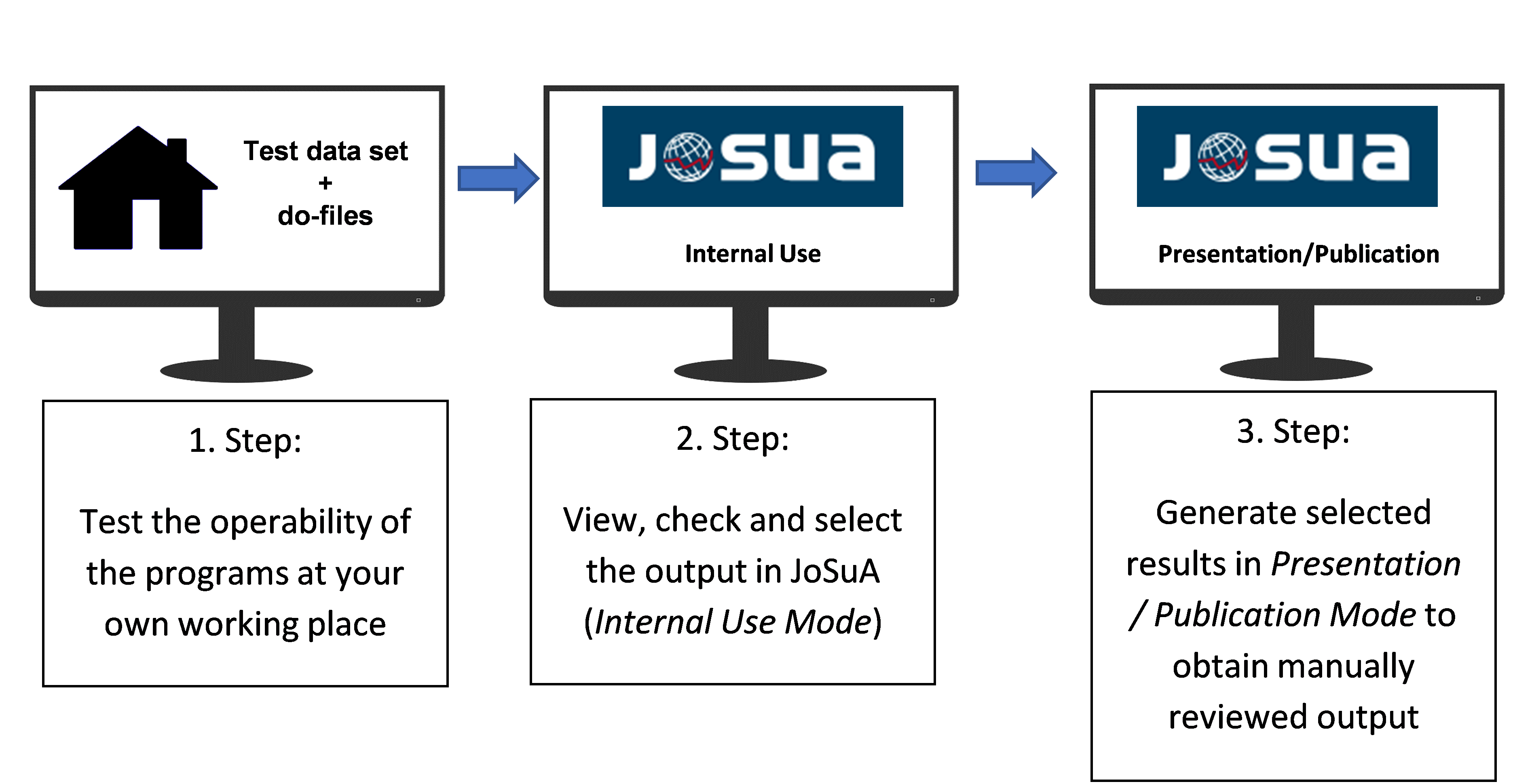
See Figure 1 for a general overview of the workflow.
The scripts you upload to JoSuA must be fully executable. The FDZ does not carry out error corrections. Therefore, always test your programmes beforehand using your test environment (see Section 2.3) or (if available) in the remote desktop.
Please make sure that the guidelines are implemented in your scripts.
If you need ado-files in JoSuA, please follow the instructions in Section 2.2.1 of our manuals. All ado files in the prog folder of your project directory at the FDZ are already included automatically.
Please note the technical restrictions regarding the number and size of programme and result files as well as our memory limitations (see Section 10.8). As a general rule, we ask you not to occupy working memory unnecessarily, as there is a risk that your job and the jobs of other users will abort or be slowed down considerably if the computing servers are heavily utilised.
Always upload your programmes in Internal Use Mode first, in order to view, check and select the results. Also make sure that the results you want to generate later in Presentation / Publication Mode comply with data protection requirements (see guidelines).
Your programmes will be started with the latest Stata version available at the FDZ.
Before uploading the next programme, please wait until the results of your previous job have been released. The FDZ reserves the right to cancel parallel jobs without prior consultation with the users if they affect the jobs of other users. The number of jobs that can be uploaded per day/week in Internal Use Mode and Presentation / Publication Mode can be found on the FDZ website. Jobs that are terminated directly due to incorrect programming are also counted against this limit.
Your results will be made available depending on the server load, the computing strain, and the required reviewing effort.
Although only Stata can currently be used within the framework of controlled remote data execution via JoSuA, JoSuA can still be used to transfer scripts from other statistical packages (such as R or Octave).↩︎
Any password changes in JoSuA will not be synchronised with the accounts for on-site use or remote desktop.↩︎
Currently the command list is censored in Internal Use Mode. The FDZ may censor further commands in the future.↩︎